Cross-platform installation guide
Streamex Install: Safe Download and Setup by Device
Looking for a Streamex install or Streamex download? Choose the correct device route, verify the exact source and app identity, and stop when a mirror asks for more access than the app needs.
Quick answer
What does a safe Streamex install involve?
A safe Streamex install starts with the right Streamex download source. On iPhone, compare the public App Store listing; on Android, verify the exact package and store status; on TV and PC, confirm that the route is truly built for that platform before installing anything.
For Android TV, Fire TV, Roku, and PC, the word install can describe very different actions. A phone APK is not automatically a TV app, Roku cannot install Android APK files, and a page that pushes a Windows installer may be a mirror rather than an official desktop release. This guide gives the short decision path, then sends you to the device-specific page when the details matter.
As checked on August 13, 2026, the public iPhone listing showed version 3.0 and about 42.8 MB. The Android package name used in older site references is com.streamex.streamexoffecial, but the direct Google Play route was not available in the current check. A third-party metadata page is only an identification aid, not proof of a current official APK or a safe download.
Before you download
Check the Streamex download source before you install
A store page, a web page, an APK index, and a file mirror are not interchangeable sources. The page title may say Streamex while the package, seller, developer, permissions, or final redirect belongs to another product. Treat the source check as part of the installation, not as an optional step after the file is already on the device.
The current source picture is intentionally cautious. The App Store listing is the clearest first-party iPhone route. The Android package can be compared by package name and store status, but this site does not host an APK and does not certify a mirror. If the source hides the version, file size, package identity, or requested permissions, stop and use the relevant guide instead of guessing.
Do not use the word latest as a shortcut. A third-party page can show a historical version while the official store is unavailable, region-limited, or has removed a listing. Record the check date, keep the official page as the fallback, and never turn an unverified metadata page into a direct download CTA.
| Platform | Best first check | What to confirm | Stop when |
|---|---|---|---|
| iPhone / iPad | App Store listing | Seller, version, size, privacy, iOS requirement | The listing or seller cannot be matched |
| Android phone / tablet | Exact Google Play package | Package, developer, version, size, permissions | Only an unknown mirror or helper installer is offered |
| Android TV / Fire TV | Device-specific guide and package fit | Architecture, remote UI, source, compatibility | A phone APK is presented as universal TV support |
| Roku | Roku Channel Store and casting options | Native channel availability and mirroring limits | A page tells you to sideload an Android APK |
| Windows / Mac | Browser or verified desktop source | Publisher, installer origin, emulator need | A download button appears before publisher evidence |
Choose the correct route
Choose your device before choosing an install file
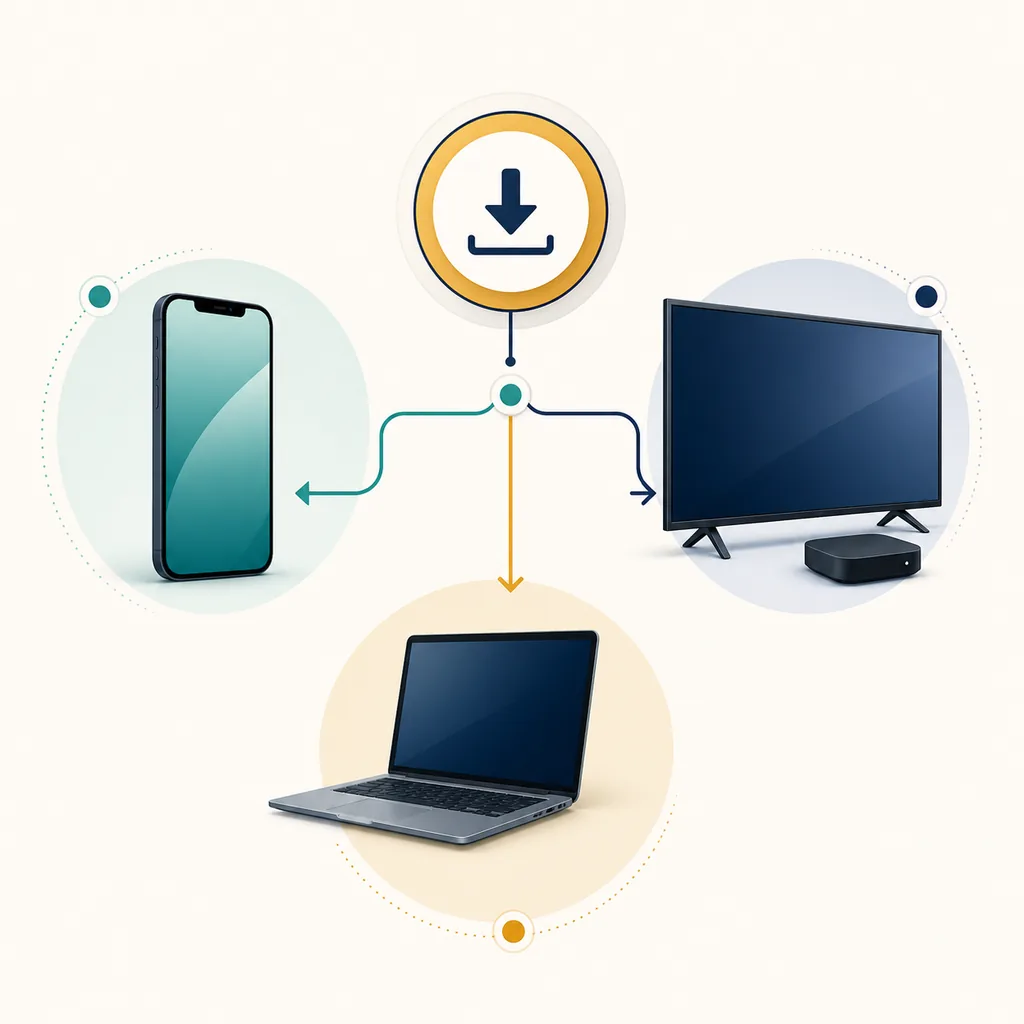
Use the table as a routing decision, not as a promise that every platform has a native Streamex app. The homepage covers direct source links and general app facts. The Android APK guide focuses on package and permission checks. The iOS guide focuses on App Store identity and privacy labels. TV, Firestick, Roku, and PC each have separate compatibility limits.
This separation prevents a common mistake: taking a phrase such as “Streamex download” and assuming it means one universal file. Search results can mix a movie-discovery app, a similarly named website, a streaming mirror, and an unrelated package. Match the product first, then follow the platform path.
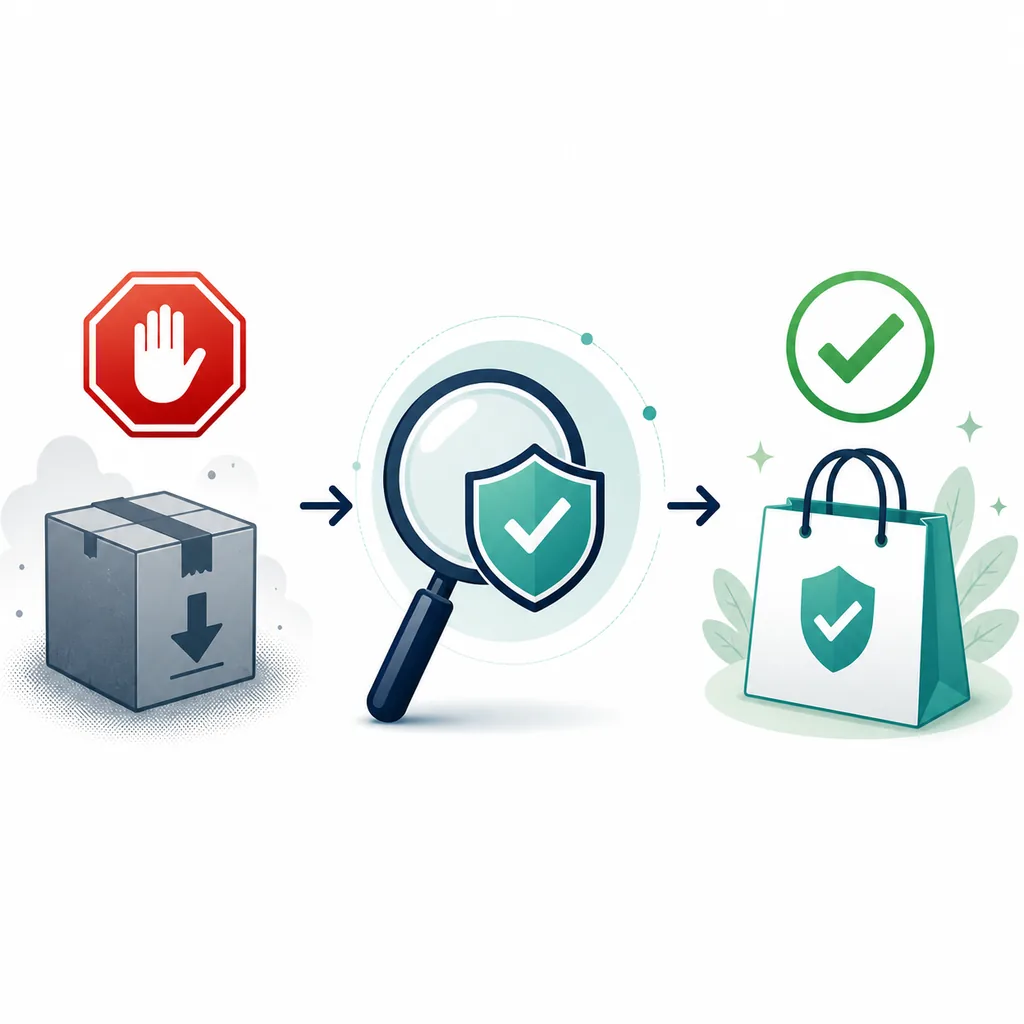
- 1. Name the device Write down the exact platform: iPhone, Android phone, Android TV, Fire TV, Roku, Windows, or Mac.
- 2. Match the product Compare the app name, developer or seller, package or bundle identifier, screenshots, and purpose.
- 3. Prefer the first-party page Use the official store or publisher page when it is available; use a third-party metadata page only for research.
- 4. Check the permission boundary A movie discovery app should not need unrelated administrator, accessibility, profile, or notification access just to show a listing.
- 5. Stop if the path changes If a button redirects to a different domain, a helper installer, a payment screen, or an unrelated package, close it.
Android
Android install steps: verify the package before the APK
Start with the exact Google Play listing if it is available for your country and device. The package name previously associated with the Streamex Android app is com.streamex.streamexoffecial. That identifier is useful for comparison, but it is not a guarantee that a file with the same text is authentic. A mirror can copy a package name, use a repacked file, or redirect to a different download.
If you must research an APK outside Google Play, keep the task at verification level. Compare the package name, developer, version, file size, Android requirement, permissions, update date, hash when available, and scanner results. Do not install a file merely because the page uses “latest”, “premium”, or “no ads”. Keep Play Protect enabled and turn off the unknown-source permission again after any permitted install.
For a detailed Android source checklist, use the Streamex APK guide from the same-language version of this site. It explains why the Android page may be unavailable without turning an unverified mirror into a recommended download.
- Open the official store route and search the exact app name and package identity.
- Compare the developer, version, file size, Android requirement, screenshots, and permissions.
- If the official route is unavailable, do not substitute a random APK; record the source and check whether the package is still current.
- If a file is independently verified and you intentionally sideload it, scan it, review permissions, and use Android's one-time unknown-source permission rather than leaving the setting broadly enabled.
- After installation, open the app once, review its permissions, and remove it if it redirects, crashes, or requests unrelated access.
- No APK file is hosted by Streamex.blog.
- A third-party metadata version is not the same as an official latest version.
- Do not mix package identifiers or updates from different mirrors.
- If the listing disappears, use the official store search or wait for a verifiable source rather than forcing an install.
iPhone and iPad
iPhone install steps: use the App Store identity check
For iPhone or iPad, start with the public App Store listing for Streamex: Watch Movies & TV. The current check on August 13, 2026 showed version 3.0, about 42.8 MB, and an iOS 13.0-or-later requirement. Store availability can still depend on country, account region, device, or changes made by the seller.
Before tapping Get, compare the seller name, app title, icon, screenshots, version history, ratings, privacy labels, and compatibility. An App Store result with a similar name is not automatically the same product. If a page asks you to install an IPA, configuration profile, certificate, or “verification” app instead, leave that path and return to the store.
The Streamex iOS guide covers the App Store listing, region differences, similar-name risks, privacy labels, and why an IPA mirror should not be treated as the normal iPhone install route.
- Open the App Store source and verify the title, seller, icon, and app purpose.
- Read the compatibility and privacy sections before downloading.
- Check the version history and size against the information you expected.
- Install through the App Store only; do not follow an IPA or profile prompt from a mirror page.
- If the app is unavailable in your region, use the listing as a reference and do not bypass the region with an unknown profile.
TV and desktop boundaries
TV, Fire TV, Roku, and PC are separate install questions
Android TV and Fire TV may share some Android concepts, but a phone APK is not automatically comfortable, compatible, or safe on a television. Remote navigation, architecture, screen layout, account flow, and playback support all matter. Use the Streamex TV guide or Firestick guide for those device-specific checks.
Roku OS cannot install Android APK files. If a page promises a one-click Roku APK, treats screen mirroring as a native channel, or asks you to install a helper package, treat it as a warning. Review the Roku guide for Channel Store status, casting, AirPlay, mirroring, and DRM limits.
For Windows or Mac, do not assume that a web page named Streamex has an official desktop installer. The safer first question is whether you need the web interface, a verified store app, or a clearly identified emulator. The Streamex for PC guide explains emulator and fake-installer risks.
- Use a device-specific page when the screen, remote, or architecture changes the install steps.
- Avoid downloads that begin only after a countdown, push notification permission, or unrelated extension install.
- Never disable core device security features just to make an uncertain installer run.
| Device | Do first | Do not assume |
|---|---|---|
| Android TV / Fire TV | Check TV-specific compatibility and remote behavior | A phone APK is a complete TV solution |
| Roku | Check the Channel Store and supported casting route | Roku can sideload Android APK files |
| Windows / Mac | Verify the publisher or use a browser route | A mirror's EXE or DMG is official |
After installation
What to check after Streamex is installed
Open the app once and confirm that its name, purpose, and navigation match the source page. Review permissions before searching for content. A redirect to gambling pages, a request for administrator or accessibility access, repeated pop-ups, or a sudden demand for another installer is a reason to close the app and remove it.
If the app opens but content does not load, separate source, network, browser, and provider problems before installing a “fix”. The Streamex not working guide covers outages, buffering, browser errors, Wi-Fi, Android, and iPhone checks. For pop-ups or redirects, use the ads and redirect guide rather than an unknown blocker APK.
If the product or domain identity remains unclear, read the Streamex website guide and the alternatives guide. A clean stop is better than turning an uncertain install into a security or account problem.
- Review permissions and remove anything unrelated to the app's stated purpose.
- Keep Play Protect, App Store protections, browser protections, and normal device updates enabled.
- Do not mix updates from different package sources.
- Record the source and check date if you need to report a misleading page.
References
Official sources used for the install decision
These links support source verification and platform safety. They do not turn an unavailable Android package page or a third-party metadata mirror into a verified APK download.
FAQ
Streamex install questions
Is the Streamex install the same on every device?
No. iPhone uses the App Store, Android depends on the exact package and source, TV needs remote and architecture checks, Roku uses its own channel and casting model, and PC may be a browser or emulator question. Use the device-specific guide when the platform changes.
Can I download a Streamex APK from this site?
No. Streamex.blog does not host APK files or certify third-party mirrors. The Android guide explains how to compare package, developer, version, size, permissions, and scan evidence before you decide what to do.
What is the current iPhone version shown by the source?
The App Store listing checked on August 13, 2026 showed version 3.0, about 42.8 MB, and iOS 13.0 or later. Store availability and future updates can still vary by region and seller changes.
Can I install a phone APK on Android TV or Roku?
A phone APK is not automatically a supported TV app, and Roku OS cannot install Android APK files. Check the TV, Firestick, or Roku guide for the correct compatibility and casting path.
Is there an official Streamex Windows installer?
This site did not verify a stable official Windows installer in the current check. Treat an EXE or DMG from a mirror as unverified until its publisher and source are clear; the PC guide explains safer browser and emulator boundaries.
Why is the Android package page not visible?
A listing can be unavailable because of region, device, account, publisher, or removal changes. The current direct check did not expose a usable package page, so do not use an unrelated APK mirror as a substitute or call a third-party metadata entry the latest official version.
What should I do if the installed app redirects or asks for extra access?
Close it, review permissions, remove the app if necessary, and use the ads, website, or not-working guide to diagnose the source. Do not install a helper APK, browser extension, profile, or administrator tool just to keep an uncertain page open.