Brave Browser how-to guide
How to Use Streamex on Brave Browser: Safe Settings and Fixes
Use Brave as a browser, not as proof that a Streamex page is official or safe. Verify the address first, keep privacy protection enabled, and change only the site setting that explains the problem.
The short answer
Can you use Streamex on Brave Browser?
You can try a Streamex web page in Brave when the page is available and the address is the one you intended to open. Brave only controls the browser environment. It does not turn a third-party website into an official service, confirm that a video source has the right to distribute a title, or guarantee that a player will load.
The safest order is simple: verify the domain, open the page with Brave's normal protections, test the page, and only then make a small site-specific change if the browser explains the failure. Do not begin by disabling Shields globally, installing a codec pack, adding an unknown extension, or downloading an APK that promises to fix a browser problem.
A browser error and a service outage can look identical. If the page fails in more than one browser, on more than one network, or on more than one device, changing Brave settings is unlikely to solve the root cause. Use the general troubleshooting guide for that wider diagnosis.
| What you see | First safe check | Do not assume |
|---|---|---|
| The address does not load | Check the exact domain and try a second network | That Brave is blocking a healthy service |
| The page opens but redirects | Stop, close the tab, and verify the source | That every replacement domain is official |
| A player is blank | Test site data, permissions, and another source | That an APK or extension is a safe fix |
Step 1
Verify the domain before changing Brave
Start from a source you can explain. Look at the full address, spelling, HTTPS indicator, and the page's behavior before you interact with a download button, notification prompt, or pop-up. A lookalike domain can open a convincing page while asking for unrelated permissions or a browser extension.
Streamex.blog is an independent information guide, not the developer or official support channel for the app or any streaming website. That distinction matters here: the goal of this page is to explain a browser workflow, not to certify a domain or provide a direct APK. If a page asks you to install a file before showing the content you expected, stop and verify the package and source separately.
Keep a short record of what you tested: the URL, device, browser version, network, and the exact error. This prevents a redirect loop or an unrelated mirror from being mistaken for a Brave compatibility problem.
- Open the intended address Use a saved, documented source rather than a pop-up or a newly suggested mirror.
- Read the full domain Check spelling, the host name, HTTPS, and whether the page suddenly changes domains.
- Reject unrelated downloads A browser guide does not require a repair APK, codec, profile, or extension.
- Record the failure Note whether the issue is loading, redirecting, permissions, audio, video, or captions.
Step 2
Use Brave Shields without weakening the whole browser
Brave Shields can block trackers, scripts, cookies, fingerprinting attempts, and other page behavior. A protected page may therefore look different from the same address in another browser. That difference is a signal to investigate, not an instruction to turn off every protection.
If you need to test a setting, use the Shields panel for the current site and change one control at a time. Reload the page after each change, record the result, and return the control to its safer default when the test is finished. A site-specific temporary test is easier to understand and safer to undo than a global browser change.
Never treat a working page after disabling protection as proof that the source is trustworthy. A page that depends on aggressive advertising, notification requests, or unexplained third-party scripts may still be a poor source even when it loads.
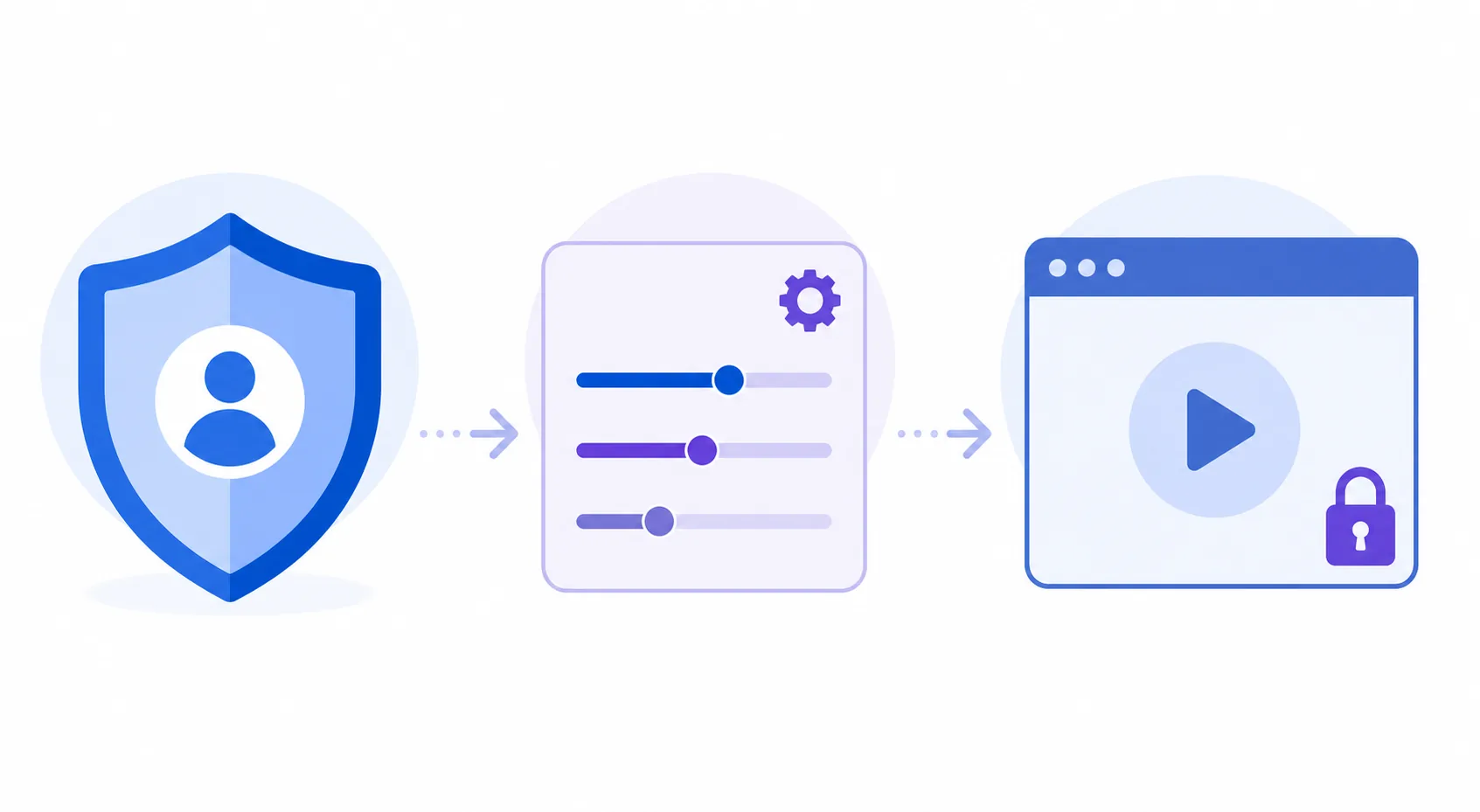
- Open the Shields control Use the browser control for the current domain, not a global privacy setting.
- Keep the default protection first Reload once with normal Shields so you have a clear baseline.
- Make one narrow test Change only the control that matches the error, then reload and compare.
- Reset after testing Do not leave a broad exception enabled just because a page eventually loaded.
Step 3
Check site data, permissions, and media behavior
Old cookies, blocked storage, or a damaged site session can make a page appear stuck. Brave's site controls let you inspect permissions and clear data for the current site. Prefer that narrow action over clearing every browser session or granting permanent access to camera, microphone, notifications, or downloads.
For a page that opens but will not keep a setting, clear only the affected site's data, close its tabs, reopen the verified address, and test again. If the site asks for notifications, push messages, an extension, or a file before you can continue, treat that request as a source-risk signal rather than a normal playback requirement.
Some video behavior depends on the embedded source, media permissions, or DRM support. Brave's documentation explains the browser feature; it does not validate the Streamex page or the rights behind a video. When a player remains blank after a narrow browser test, try the official provider or a licensed source instead of collecting more exceptions.
| Control | Use it when | Safer boundary |
|---|---|---|
| Site data or cookies | A page loops, forgets a choice, or keeps showing a stale error | Clear only the current site |
| Autoplay or media permission | A legitimate page has a visible player but no start action | Grant only to the exact source you recognize |
| Notifications | Almost never for ordinary playback | Keep blocked unless you have a clear reason |
| Downloads or extensions | Only when independently verified and genuinely required | Do not accept a surprise repair prompt |
Step 4
Fix the specific Brave symptom, not the whole browser
If Streamex does not load in Brave, first compare the same address in a second browser and on mobile data. If both browsers fail, the issue is probably the domain, source, network, or service. If only Brave fails, use the Shields and site-data checks above, then remove any temporary exception you do not need.
A redirect to Google, a betting page, or another unrelated domain is not a normal playback fix. Close the tab, do not grant notification permission, and check the address again. The redirect may come from a bad source, an advertising chain, a compromised page, or a stale bookmark; it is not evidence that Brave should be disabled.
A black player can also be caused by the embedded provider, a title that is unavailable, a blocked media request, or a DRM limitation. Do not promise that changing a browser flag will restore a title. The useful outcome is a controlled diagnosis and a safe fallback, not a forced playback result.
- Do not disable Brave protections globally for one page.
- Do not install an unknown extension, codec, VPN profile, or APK because a page says it is required.
- Do not reuse a password on a page that unexpectedly redirects or requests unrelated permissions.
- If the same failure appears across browsers and networks, stop changing local settings.
| Symptom | Diagnostic order | Safe fallback |
|---|---|---|
| Browser not loading | Domain, second browser, second network, then site data | Use the general status guide |
| Unexpected redirect | Close tab, verify host, review notification permissions | Leave the source and do not install a fix |
| Black or empty player | Source availability, media permission, DRM/provider limits | Use the official provider when available |
| Captions missing | Player controls, title tracks, source and device | Open the subtitles guide |
Desktop and Android
Brave on desktop and Android are not identical
Desktop Brave gives you more room to inspect the address, open site controls, compare tabs, and read a full error message. It is usually the easier place to perform a controlled test. Keep the test reproducible: use a fresh private window only as a comparison, not as a way to bypass a warning or hide a risky download flow.
Brave on Android has different menus, media behavior, and device permissions. A page that works on desktop may fail on a phone because of the source's responsive player, Android permission state, memory pressure, or the network path. Do not infer that an Android APK is needed simply because the browser layout is poor.
If you need TV viewing, casting, subtitles, or PC setup, use the matching device guide. A browser-specific page should remain focused on Brave diagnosis and source verification rather than becoming a universal installation page.
| Environment | Useful check | Limit |
|---|---|---|
| Desktop Brave | Inspect full URL, Shields, site data, and console-style error text | A desktop page still depends on the video source |
| Android Brave | Check site permissions, data, network, and screen orientation | Mobile menus and players expose fewer controls |
| TV or casting | Use the TV or Chromecast guide for device-specific checks | Browser success does not guarantee receiver playback |
Version freshness
A Brave browser guide does not require an APK
This page is about using a browser. It does not require a Streamex APK, a browser extension, a codec, or a special player. If a page tells you to download one of those items before it will work, separate the download claim from the browser problem and verify the source independently.
On August 17, 2026, this site did not verify a newer first-party release for the historical Android package `com.streamex.streamexoffecial`. Public metadata still identifies version 7.0 and about 16.47 MB with a March 2026 update, but that is historical identification data, not proof of a current official download. A different package name or a mirror page should not be presented as an update.
Use the APK guide only when the search intent is genuinely package verification. For a Brave problem, the safer action is to keep the browser updated from its own official channel, keep site exceptions narrow, and stop when the source asks for unrelated software.
- No direct APK or browser download is provided on this page.
- The historical version check is labeled as identification data, not a latest-version claim.
- A new package name is not automatically an update to the old package.
- Prefer official browser and app-store pages when a download is actually needed.
Reference points
Official browser documentation and source checks
These links explain browser controls or help identify the app-source context. They do not certify a Streamex website or guarantee playback.
Common questions
Streamex on Brave Browser FAQ
Does using Brave make Streamex legal or official?
No. Brave is a browser with privacy and permission controls. It cannot verify ownership, content rights, a mirror domain, an app package, or the legality of a video source.
Should I turn off Brave Shields for Streamex?
Do not turn Shields off globally. If you need a diagnostic test, use a narrow site-specific change, reload once, compare the result, and restore the safer default. A page that only works after broad protection is disabled still needs source verification.
Why does Streamex open Google or another unrelated page?
The redirect may come from a bad source, advertising chain, compromised page, stale bookmark, or domain change. Close the tab, do not allow notifications or downloads, and verify the full address before trying again.
Can I use Brave on Android for the same page?
You can test it, but Android Brave has different menus, permissions, screen constraints, and media behavior. A mobile layout problem does not prove that an APK is required.
Do I need a Streamex APK to use Brave?
No. This guide is for a browser workflow. Do not install an APK, extension, codec, or VPN profile just because a page says it is needed to fix loading.
What should I do if the player is black?
Check whether the source works in another browser and network, then review only the current site's data and media behavior. A black player can come from the embedded provider, title availability, DRM, or the source itself; use an official provider when available.
Where can I find the latest Streamex version?
This Brave guide does not claim a latest APK or provide a direct file. The historical Android package check found version 7.0 in March 2026 metadata, but a historical version is not proof of a current official download. Verify package identity and the official store context before installing anything.