Family viewing and device safety guide
Streamex Parental Controls: A Parent Safety Checklist
Parents searching for Streamex parental controls usually need a simple answer: the app, the television, and the operating system may provide different controls. This guide separates those layers, explains the limits of unverified app claims, and gives you a calm checklist for safer family viewing.
Quick answer
Do Streamex parental controls exist in the app?
There is no stable, public Streamex support page that confirms a universal in-app PIN, child profile, content-rating filter, or family dashboard. That does not prove that every version lacks a setting, but it does mean you should not treat a search snippet or an APK description as proof. Streamex parental controls should be treated as an evidence question first: identify the exact app, developer, package, and version, then look for a documented control that you can test and undo.
For most families, the reliable control is one level above the app. Google TV, Android TV, Fire TV, Roku, Apple devices, and home routers can provide profiles, purchase restrictions, content ratings, app limits, or network schedules. Those controls can still work when an app has no child mode. They also give you a clearer place to change a PIN, review what is blocked, and remove a rule when an older child needs different access.
This page is deliberately separate from the Streamex TV setup guide. The TV guide answers whether an app or APK can run on a big screen. Here the question is who controls the viewing session, what the control actually covers, and how a parent can verify the result without relying on a risky download. If a source claims that Streamex has a built-in family feature, ask for a current screen in the same app version and check whether the setting survives a sign-out or device change.

- Use the exact app listing and package identity, not a copied logo or a mirror page.
- Prefer a device or operating-system control that shows its current status and recovery path.
- Test a blocked item, an allowed item, and the parent exit path before handing over the remote.
Entity check
Do not confuse Streamex with StreamX parental control hardware
Search results for Streamex parental controls can mix two different names. A StreamX X2 Pro or X2 Max hardware guide describes a channel-lock feature with a password. That is a set-top-box product workflow. It is not evidence that the Streamex movie and TV discovery app has the same feature, and it should not be copied into an app installation guide.
Before following any family-safety instruction, write down four identifiers: the product name shown in the store, the developer name, the package or app ID, and the device operating system. A result that says StreamX, Streamyx, or another spelling may belong to a different company. The distinction matters because a hardware PIN can lock channels while an app-level setting may only hide a title, limit a profile, or do nothing at all.
If you are looking at a TV box, keep the box manual and the app listing separate. Use the manual for the box PIN, the TV settings for profiles and ratings, and the Streamex listing only for the app's identity and permissions. This simple separation prevents a parent from believing that an APK mirror added a safety feature that the original app never documented.
| Result or label | What it may describe | Parent action |
|---|---|---|
| Streamex app | Movie and TV discovery app listing | Check developer, package, version, and permissions. |
| StreamX X2 Pro / X2 Max | TV hardware with a channel PIN workflow | Use the hardware manual; do not generalize it to the app. |
| Streamex website or APK page | A source or download claim | Verify domain and package before installing. |
| TV or OS family settings | Profiles, ratings, app limits, or schedules | Use this layer for the rule you can test and recover. |
Choose the right layer
Where should a family put the control?
A good family setup uses the lowest layer that can reliably enforce the rule. If the app has a documented child profile and a tested PIN, that may be convenient. If the app is unclear, put the rule on the TV or operating system. If several devices share one connection, add a router or DNS schedule as a second boundary, but remember that a network rule cannot understand every title or rating inside an encrypted streaming session.
On Android TV or Google TV, start by checking whether the device offers a child profile, app restrictions, purchase approval, or content-rating controls. The labels and menu paths vary by manufacturer and software version, so record the setting name and take a private note of the recovery account. On Fire TV, Roku, and Apple devices, use the platform's own parental controls or screen-time tools where available. Do not install a phone-only APK merely because it contains the words kids or family.
Casting changes the control path. A child may be watching on the TV while a phone remains the controller, so the phone profile, casting permissions, and notification previews become part of the setup. A browser adds another layer: safe search, site permissions, pop-up protection, and the browser profile can matter more than the app name. Choose one primary layer, document it, then add only the second layer that solves a real gap.
| Control layer | Useful for | Important limitation |
|---|---|---|
| App profile or PIN | A documented child mode inside the same app | May disappear between versions or apply only to one account. |
| Android TV / Google TV | Ratings, profiles, purchases, and TV apps | Menus differ by device, country, and account type. |
| Fire TV / Roku / Apple | Platform restrictions and screen-time rules | A rule may cover the platform but not a cast source. |
| Home router or DNS | Schedules and broad domain boundaries | Cannot reliably judge every title or in-app recommendation. |
| Parent supervision | Context, conversations, and changing rules | A setting is not a substitute for age-appropriate supervision. |
Family setup
A safer Streamex family viewing checklist
Use this sequence when a child asks to watch Streamex on a phone, TV, or shared tablet. It is intentionally platform-neutral because the exact controls depend on the operating system. The goal is to produce a result you can explain: what is blocked, where the PIN lives, which account owns it, and what happens when the child tries an unapproved path.
First, verify the source. Open the store or official listing from the device, compare the developer and package ID, and check the requested permissions. A page that promises a special kids APK, a hidden unlock, or a free premium family mode is a warning sign. Do not disable Play Protect or install a file simply to reach a control that has not been documented.
Next, create the least-privileged child profile available. Use a separate account when the platform supports it, turn on a parent PIN, and require approval for installs or purchases. If the service has age ratings, choose a level that matches the child rather than using an adult profile with a warning message. Keep the recovery email or device account private so the child cannot reset the rule from the same screen.
Then run three tests before regular viewing: open an allowed title, attempt a blocked or mature-rated title, and try to reach the app store, browser, cast picker, or settings page. The second test proves a rule is active; the third test finds bypasses. Record the date, device, profile, and app version so you know what changed after an update. Finally, show the child how to ask for access rather than asking them to guess a PIN or search for another APK.
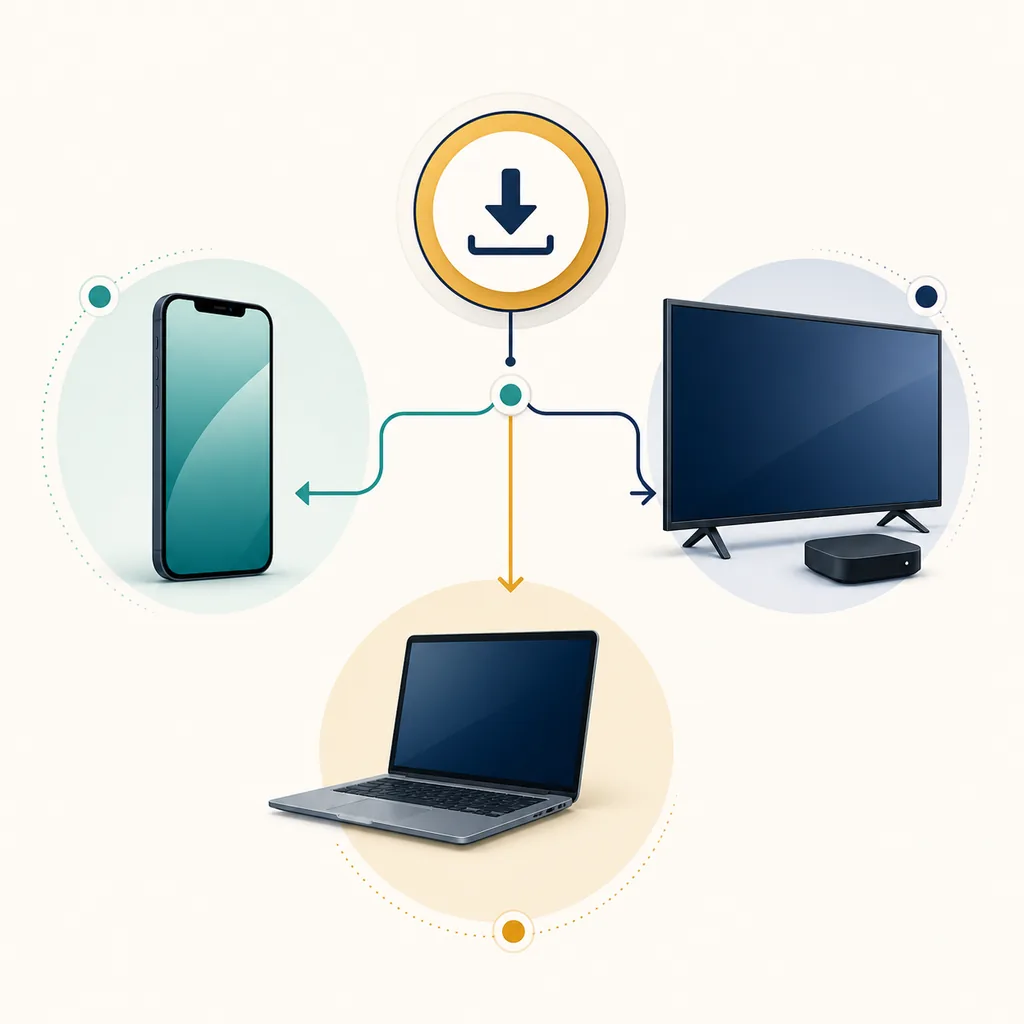
- 1. Verify identity Match the listing, developer, package name, version, and permissions.
- 2. Pick a control layer Use a documented app profile or the TV/OS family settings.
- 3. Protect the parent account Set a private PIN, recovery path, and install or purchase approval.
- 4. Test three paths Check allowed viewing, blocked viewing, and the settings or store bypass path.
- 5. Recheck after updates Confirm the profile, ratings, and PIN still apply after an app or TV update.
Limits and privacy
What parental controls cannot guarantee
A parental control can restrict a menu, app, rating, purchase, or schedule. It cannot make an unknown source trustworthy, verify that every recommendation is age appropriate, or remove every advertisement and redirect. This is why a content rule should sit beside source checks and browser hygiene. If an APK page asks for accessibility access, contacts, SMS, or device administration without a clear reason, stop and review the source even when the page claims to be family friendly.
Controls can also fail silently. A child may switch to a different TV profile, cast from an adult phone, use a browser instead of the app, or connect through mobile data outside the home router. A screen-time limit may count the browser but not the TV, and a router schedule may block a domain without explaining which title triggered it. Treat a failed test as a signal to simplify the setup, not as a reason to stack many unknown filtering apps.
Keep privacy in the same conversation. Use the smallest account that works, avoid sharing a parent email on a child-facing screen, and review notification previews and watch history together. Explain that a control is a family rule, not a secret surveillance promise. The safer result is a setup the parent can inspect, the child can understand, and the household can change when the device or app changes.
- Content filtering, ad blocking, domain safety, and privacy are separate checks.
- A blocked screen is not proof that a mirror APK or copied website is safe.
- Keep a recovery path for the parent account and remove obsolete rules after a device change.
Device checks
Troubleshoot the family setup without chasing APK fixes
If the child profile cannot see Streamex, check whether the platform marks the app as compatible before searching for a TV APK. A phone package may install but lack remote navigation, a TV launcher entry, or the account hooks used by the family profile. Use the TV guide for compatibility questions and the install guide for source verification; do not turn a missing icon into a download race.
If the app opens but a restriction is missing, confirm the active profile, date and time, software update, and parent PIN. Test the same title on the device where the rule was created. If the rule only applies to one platform, decide whether casting or a browser needs a separate limit. When an app update changes the menu, capture the new setting name and repeat the three-path test rather than trusting an old screenshot.
If unexpected pop-ups or redirects appear, stop the viewing session and use the Streamex ads safety guide. If the domain itself looks different, compare it with the website source guide. If the service simply will not load, use the not-working or blocked guides. Keeping these problems separate helps parents avoid installing a second unverified package in an attempt to repair a family-control setting.
| Symptom | First check | Next safe move |
|---|---|---|
| No child profile option | TV/OS account and device model | Use the platform family settings or a supported device. |
| PIN does not stop a cast | Controller phone profile and cast permissions | Restrict the phone or disable casting for the child profile. |
| Mature title still appears | Rating level and active account | Re-test on the same profile and review the platform rule. |
| Pop-ups or redirects | Browser and source URL | Stop, clean the session, and review the ads safety guide. |
| App missing after update | Store compatibility and launcher | Do not sideload a random replacement; verify the listing first. |
Reference points
Use first-party platform guidance for the final setting
Platform menus change, so use the current support page for the device in front of you. The external StreamX hardware article below is included only to show why names and products must be separated.
Family questions
Streamex parental controls FAQ
Does Streamex have built-in parental controls?
There is no stable public documentation confirming a universal Streamex child profile, PIN, or rating filter. Check the exact app version, but use the TV or operating-system family controls when the app setting is not documented.
Is the StreamX parental control article about the Streamex app?
No. The commonly returned StreamX article describes channel locking on X2 Pro and X2 Max hardware. It is useful for understanding the name collision, not for proving a Streamex app feature.
Can Android TV or Google TV restrict Streamex?
The platform may provide child profiles, ratings, purchase approval, or app restrictions. Menu names vary, so confirm the current setting on your device and test an allowed title, a blocked title, and the settings path.
Will a parental-control PIN stop a child from using a different APK?
Not necessarily. A PIN may protect one profile or store, while a browser, cast controller, or second package uses another path. Include install approval, browser and casting checks, and source verification in the family setup.
Do parental controls remove ads and redirects?
No. Content controls and browser safety are different. Stop unexpected redirects and follow the Streamex ads safety guide instead of treating a family profile as an ad blocker.
What should I do after a Streamex update?
Confirm the active child profile, parent PIN, rating level, app compatibility, and three test paths again. If a menu moved, record the new label and avoid downloading a replacement from an unverified mirror.