Google Cast troubleshooting
Streamex Chromecast Not Working: Google Cast Fixes
If you are asking how to make Google Cast work with Streamex.net, first check whether the active Streamex app or video player exposes a real Cast button. Then confirm both devices share the same Wi-Fi, local-device permissions are enabled, and the receiver can play that specific source. This guide separates connection fixes from app, player, DRM, and mirror-site limitations.
Quick answer
Why Streamex Chromecast may not work
A missing Cast icon does not always mean your Chromecast is broken. Google Cast must be implemented by the active app or web player. If Streamex only shows trailers, watchlist details, external provider links, or an embedded player without Cast support, the receiver will never appear inside that player.
When a Cast icon is present but no device appears, put the phone or computer and Chromecast on the same non-guest Wi-Fi, turn off VPN or private relay temporarily, allow local-network or nearby-device access, and restart the sender, receiver, and router. If the device connects but video fails, the source may block casting, require DRM the receiver cannot satisfy, or provide a format the receiver cannot decode.
Before troubleshooting
Check whether the active Streamex screen supports Google Cast
Look for the standard Cast icon inside the actual player, not in an advertisement, browser toolbar, or unrelated download page. Open another title and another verified source because Cast capability can change with the embedded provider. A site name or APK label cannot prove that every player supports Chromecast.
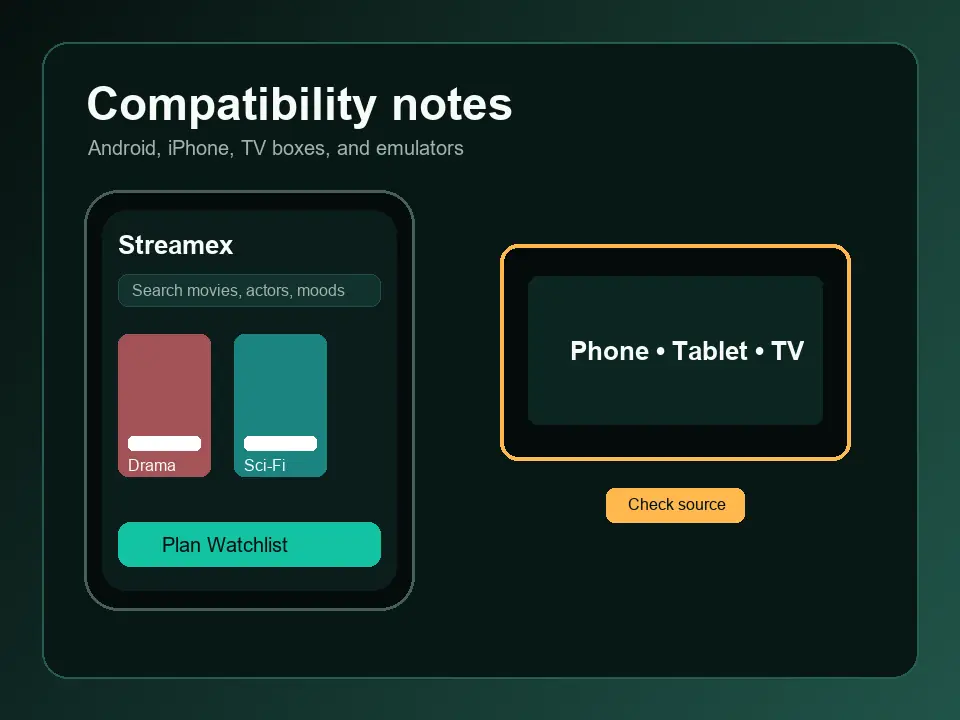
The version freshness check on July 15, 2026 found no verified change to the app facts already used by this site: the iOS listing remains version 3.0 at about 42.8 MB, while the Android metadata reference remains package com.streamex.streamexoffecial, version 7.0, 16.47 MB, updated March 21, 2026. These facts identify listings; they do not certify Google Cast support or a streaming source.
| What you see | What it usually means | Next action |
|---|---|---|
| No Cast icon anywhere | The app or player may not implement Google Cast | Try a verified source or a supported TV app |
| Cast icon but no receiver | Network discovery or permission problem | Check Wi-Fi, guest isolation, VPN, and local permissions |
| Receiver connects but video errors | Player, DRM, codec, login, or region limitation | Test another title and an official service app |
Connection checklist
Fix device discovery in the safest order
Do not install a casting helper APK from a pop-up. Use the low-risk checks below first. Each step isolates one layer, so stop when the receiver becomes visible.
- Confirm the phone, tablet, or computer and Chromecast use the same Wi-Fi name and router.
- Leave guest Wi-Fi and disable access-point isolation if you control the router.
- Temporarily pause VPN, proxy, private DNS, or iCloud Private Relay and test again.
- Restart the sender, Chromecast or Google TV, and router; then reopen the player.
- Update Google Home, the sender browser or app, and receiver firmware from official sources.
Phone and browser checks
Allow local discovery without granting excessive access
On iPhone or iPad, check Settings for Local Network access for the browser or app you are using. On Android, confirm Nearby devices, local network, Wi-Fi, or location-related discovery permission when the operating system requests it. Permission names vary by Android version; do not grant contacts, SMS, accessibility, device-admin, or unknown-app access just to find a Chromecast.
In Chrome or another supported browser, test a known Cast-enabled service. If that service can see the receiver but Streamex cannot, the network is probably working and the limitation is inside the Streamex player or source. If no service can see the receiver, return to Google Home and router troubleshooting.
- Grant only local discovery permissions needed by the sender.
- Use the same browser profile and Wi-Fi during testing.
- Clear site permissions only for the affected domain, not all browser data at once.
- Reject extensions or APK files claiming to unlock Cast support.
Playback diagnosis
When Streamex connects but the video will not play
A successful connection only proves discovery worked. Playback can still fail because the video host blocks remote playback, the receiver lacks a required codec, DRM or account authorization fails, the source is region-limited, or an advertisement opens a different tab. Test one legal, verified Cast-enabled service to confirm the receiver itself works.
If audio plays with a black screen, lower quality when the player offers it and test a different title. If casting stops after a redirect, close the tab and review the Streamex ads and redirect guide instead of approving notifications or installing a blocker APK. If subtitles disappear, use the subtitle guide because caption tracks can be handled separately by the receiver.
| Symptom | Likely layer | Best next check |
|---|---|---|
| Black screen with audio | Codec, DRM, or video format | Try another title or official provider app |
| Cast disconnects after an ad | Redirect or tab change | Close it and review browser permissions |
| Video works but captions do not | Subtitle track or receiver support | Check CC in sender and receiver |
| Only Streamex fails | App or embedded player limitation | Use the official source app when available |
Safe fallbacks
Use a supported TV route when native Cast is unavailable
If the player has no Cast support, the cleanest fallback is an official streaming-service app on Google TV, Android TV, Apple TV, Fire TV, Roku, Samsung, or LG. Screen mirroring can work for personal, lawful content, but it may show notifications, reduce quality, drain battery, and fail with DRM-protected video.
Avoid random cast-helper extensions, modified Streamex APKs, and pages that ask for notification permission before showing a player. This site does not host APK files and does not claim that Streamex.net or any mirror is an official Cast source. Use the TV guide for device compatibility and the website guide when the domain itself is uncertain.
| Fallback | Best for | Main limitation |
|---|---|---|
| Official TV app | Stable playback and account support | Availability varies by service and country |
| Browser tab casting | Supported web video and presentations | May fail with DRM or embedded players |
| Screen mirroring | Short personal demonstrations | Lower quality, privacy exposure, battery use |
| HDMI from a computer | Reliable local display output | Requires a cable and compatible ports |
Official references
Google Cast, local network, and listing references
Use first-party help for device discovery and local-network permissions. Store pages identify app listings but do not certify a third-party mirror or guarantee Cast support.
FAQ
Streamex Chromecast FAQ
Does Streamex have a Chromecast button?
It depends on the active app build and video player. Look for the Cast icon inside the player; a download page or app name alone does not prove support.
Why can Google Home see Chromecast but Streamex cannot?
That usually points to the Streamex app, browser player, embedded source, or permission state rather than the receiver itself.
Why does Streamex connect but show a black screen?
The source may use unsupported DRM, codecs, login rules, or remote-play restrictions. Test another title and an official provider app.
Can a VPN hide my Chromecast?
Yes. A VPN, proxy, private relay, guest network, or client isolation can prevent local device discovery.
Should I install a Cast helper APK?
No unknown helper is required for normal Google Cast. Avoid files or extensions that promise to unlock casting without a verifiable developer and official source.