Network access diagnosis
Streamex Blocked? Diagnose ISP, DNS and Network Access Safely
If Streamex works on mobile data but not on home, school, or work Wi-Fi, the problem may be a network path rather than a global outage. Compare one variable at a time and record the result before changing DNS or trusting a mirror.
Quick answer
Streamex blocked or simply unavailable? Start with the network comparison
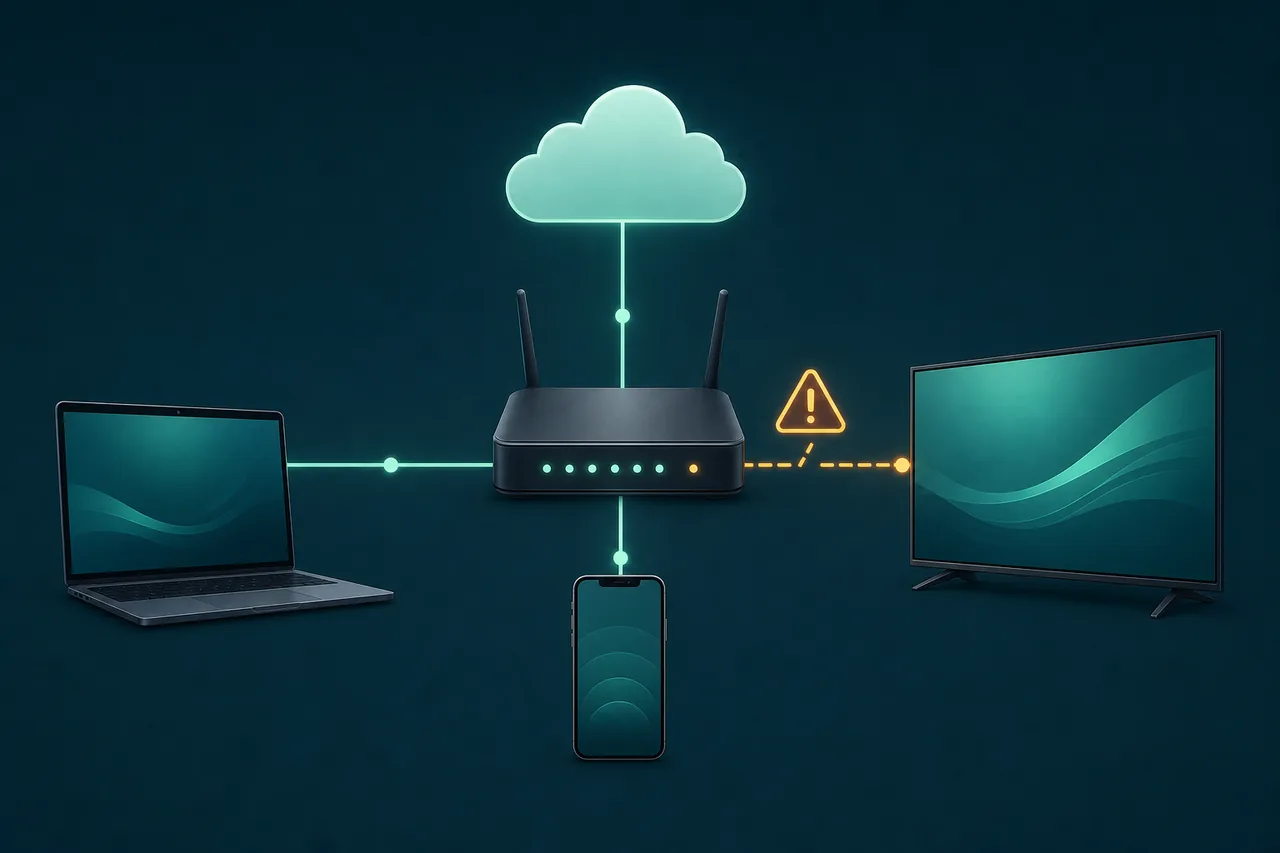
The phrase streamex blocked usually describes a network-access question. A page that fails on one Wi-Fi connection but loads on mobile data is often being filtered, misresolved, or routed differently. That pattern does not prove that an ISP, school, or employer intentionally blocked Streamex, and it does not prove that a working mirror is official. It is a clue that the network path deserves a controlled check.
Open the exact address in a private window, then test it on the same device using mobile data and Wi-Fi. Try a second device only after recording the first result. If every device and network fails, treat the situation as a possible domain or service outage and use the general not-working guide. If only one network fails, keep the diagnosis focused on DNS, filtering, router settings, captive portals, or regional routing.
Do not solve a blocked-site question by installing a random APK, browser extension, VPN profile, or proxy from a streaming page.
| What you observe | Most likely scope | Safe next action |
|---|---|---|
| Works on mobile data, fails on home Wi-Fi | Router, DNS, ISP route, or policy | Record the browser error and compare DNS settings |
| Fails on every device and network | Domain, service, or source outage | Wait, verify the address, and avoid mirrors |
| Only one browser fails | Cache, extension, certificate, or permission | Use a private window and inspect extensions |
| School or work network shows a policy page | Managed filtering rule | Ask the administrator; do not install a bypass |
| A different domain loads a similar page | Possible clone or mirror | Check the domain before interacting |
Separate the layers
How to tell a Streamex block from a general outage
A streamex blocked result that changes by connection often has a boundary: the page works from a phone hotspot, another provider, or a different country, but not from the affected Wi-Fi. A general outage normally affects more than one connection, while a device problem leaves the same Wi-Fi working on another phone or laptop. These patterns show which variable changes the result.
Browser messages also narrow the layer. A name-resolution error suggests DNS or filtering; a certificate warning suggests a domain or interception problem; a timeout can be a route, firewall, or unavailable server; a policy notice points to managed access. The text is evidence, not a verdict. Save the message and the exact URL, then compare one known safe website on the same connection.
Search results that say ‘unblocked’ or ‘working mirror’ are not independent uptime evidence.
| Error or pattern | What it can indicate | What it cannot prove |
|---|---|---|
| DNS_PROBE_FINISHED_NXDOMAIN or server not found | Name resolution failure, typo, or DNS filtering | That the service is permanently gone |
| Connection timed out | Firewall, route issue, overloaded host, or outage | That a proxy is safe |
| Certificate or privacy warning | Wrong domain, expired certificate, or interception | That clicking through is harmless |
| Works on hotspot only | Wi-Fi, ISP, or policy boundary | That the mobile route is official access |
| Policy or category block page | School, work, family, or ISP filtering | That changing settings is allowed |
Five-minute test
Run a Streamex blocked diagnosis in a controlled order
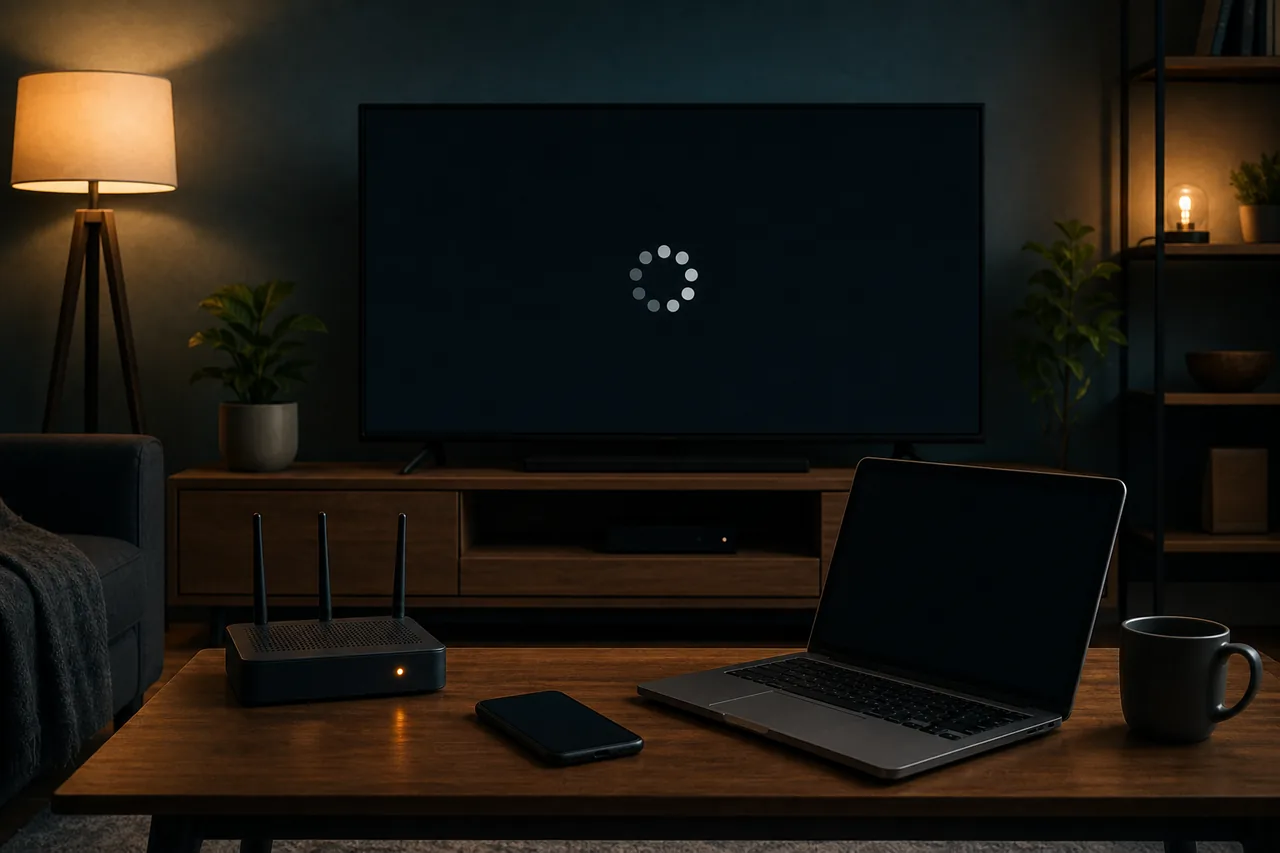
For a streamex blocked check, change one variable at a time and write down the result. This prevents a cache issue from being mistaken for an ISP block and keeps you from making several risky changes that cannot be undone. Use a trusted browser and the exact URL you intended to visit.
The goal is not to make an unknown copy load. The goal is to identify whether the failure follows the domain, the network, the device, or the browser. Stop if a page requests notifications, payment, remote control, accessibility, or an installer before it shows useful content.
- Confirm the address Compare the spelling with a trusted note or the site guide. Do not follow a new domain from a pop-up or social comment.
- Test a private window If the page works privately, clear only the affected site data and inspect extensions. Do not erase every saved login first.
- Switch Wi-Fi and mobile data Keep the device and browser the same. A changed result points to a connection path, DNS resolver, or policy boundary.
- Try a second device Use the same network. If only one device fails, focus on its cache, security software, date, or local DNS settings.
- Read the exact error Capture the browser message and whether the page timed out, refused the connection, redirected, or showed a policy notice.
- Retest later If all combinations fail, wait and check again. A temporary outage rarely needs a new APK, extension, or proxy.
DNS and routing
Use DNS clues without assuming a DNS change will fix Streamex
In a streamex blocked diagnosis, DNS translates a domain name into an address. If the resolver returns no answer, returns an altered result, or is unreachable, the browser may report a name-resolution error before any video or page server is contacted. That can look like a block, but it can also be a typo, a temporary resolver problem, a captive portal, or a domain that no longer publishes a record.
Android exposes a Private DNS setting under Network and internet. Google describes it as protection for DNS questions and answers, not a complete privacy or access tool. Record the original setting before testing, use a reputable provider only when your network policy allows it, and restore the setting if the comparison makes no difference. Do not paste a hostname copied from a proxy page.
A DNS change cannot repair a broken player, unavailable source, certificate warning, account restriction, or managed network rule.
Managed networks
What to do when Streamex is blocked at school or work
School, workplace, library, hotel, and family networks may filter categories, domains, ports, or unknown destinations. A policy page, a sign-in portal, or a consistent block on every device is stronger evidence of managed filtering than a blank browser tab. The administrator controls that network, so the safe response is to follow its acceptable-use rules or ask for an explanation.
Do not install a VPN, proxy extension, custom certificate, or ‘unblocker’ on a managed device to evade the rule. It may violate policy, expose credentials, or route all device traffic through an unknown operator. If you need access for a legitimate project, request an approved exception or use a personal connection that you are authorized to use.
If a school or work page blocks only one domain, keep the timestamp, URL, and policy message for the administrator.
| Managed-network signal | Safer response | Avoid |
|---|---|---|
| Category or policy page | Follow the policy or ask the administrator | VPN or proxy installation |
| Captive portal before browsing | Complete the legitimate sign-in | Entering credentials into a mirror |
| Only a managed device fails | Use support channels and a clean test device | Changing certificates or admin settings |
| Repeated redirects to installers | Close the page and report the domain | Allowing notifications or downloads |
Safe next steps
Choose a proportionate next step after the evidence
After a streamex blocked check, remove the affected site permission when only one browser fails, test without extensions, and clear only that site's data. If the issue is limited to home Wi-Fi, restart the router once, check for a captive portal, and compare mobile data. If the error is a domain or certificate warning, stop using that address and review the domain-safety guide.
If every device and network fails, wait rather than chasing a new mirror. If a verified app listing is the actual problem, use the APK, iOS, TV, or PC guide for source and compatibility checks. A blocked website article should not turn into a download recommendation because the first page did not load.
Leave when a fix asks for payment, device-admin or accessibility access, a configuration profile, remote control, a modified APK, or an unofficial extension.
Official references
Platform help for DNS and browser diagnosis
These sources explain platform settings and browser errors. They do not certify any Streamex domain, mirror, or download.
FAQ
Streamex blocked FAQ
How can I tell if Streamex is blocked by my ISP?
Keep the device and browser the same, compare home Wi-Fi with mobile data, and read the exact error. A Wi-Fi-only failure is a clue about the network path, DNS, or policy, but it is not proof of intentional ISP filtering.
Why does Streamex work on mobile data but not Wi-Fi?
The two connections may use different DNS resolvers, routes, filters, captive portals, or regional policies. Record the result, test another trusted domain, and avoid assuming that a mirror is official.
Will changing DNS unblock Streamex?
Only a name-resolution problem may change after a DNS test. DNS cannot repair a broken player, an unavailable server, a certificate warning, an account restriction, or a managed network rule.
Is it safe to use a Streamex proxy or mirror?
A search result cannot prove that a proxy is official or safe. Do not trust pages that demand payment, notifications, credentials, certificates, VPN profiles, or downloads before showing their source.
What should I do if school Wi-Fi blocks Streamex?
Follow the school policy or ask the network administrator. Do not install a VPN, proxy extension, custom certificate, or unblocker on a managed device to evade the rule.